
|
|
This page offers help on the following:
In order to be able to use the WLG system, you need to log in from the License page using the valid user name and password that has been provided to you when you had purchased our SDK product. If you are not a SDK customer then please contact our License team by:
Please review the Cimetrix Incorporated License Policy here:
In order to generate a new license, enter a valid Certificate of Authenticity (COA), your computer’s MAC ID and a valid e-mail address(es). If any one of these fields is left empty, the license generation will fail.
After you have provided a valid COA, MACID and email address(es), click the Submit button and a confirmation message will be displayed to let you know that the license was successfully generated and the email was successfully sent.
Return To Top
To generate multiple licenses at once, use the  button to add another row, then provide valid COAs and MAC IDs.
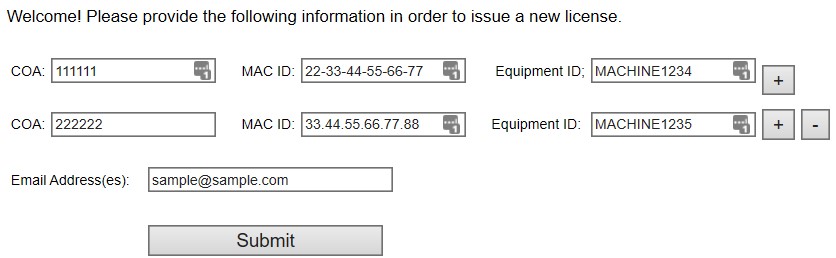
You can remove any row by clicking the  button.
After providing all the necessary information (COAs, MACIDs, email address(es)), click the Submit button and the license file will be sent to the provided Email Address(es).
button.
After providing all the necessary information (COAs, MACIDs, email address(es)), click the Submit button and the license file will be sent to the provided Email Address(es).
If you need to transfer a license to a different computer or because of a hardware modification select the Transfer License top navigation tab.
Provide the old computer’s MAC ID as well as the targeted new computer’s MAC ID, and valid e-mail address(es) in order to transfer a license. If any one of these fields is left empty, the license cannot be transferred. The Certificate of Authenticity (COA) is not required but may be helpful in more effective processing of your request if the system has trouble finding the Old MAC ID.
Return To TopIf your License Transfer request fails because of inaccurate license information or other system error please send an email to licenses@cimetrix.com and our license team will fulfill your transfer request in one business day. However if it is urgent that you receive a working license file immediately, the Web License Generator can issue you a 10-Day temporary license file while you wait for the License Department to complete your request.
In order to issue a Temporary license, click the Request 10-day Temporary License link and the system will redirect you to the Temporary License page.
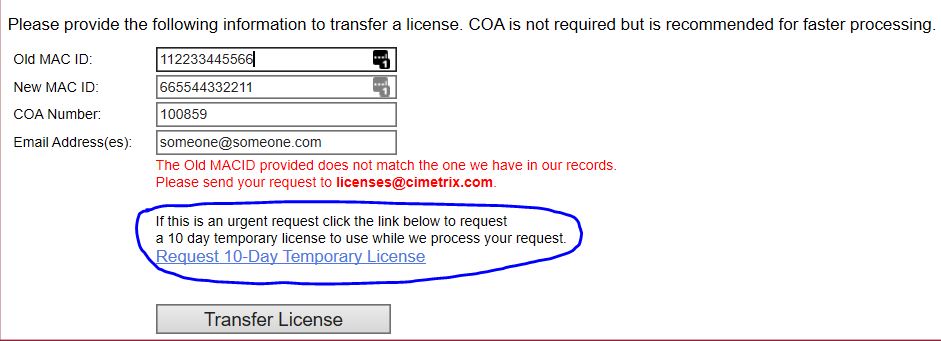
On the Temporary License page, the new targeted MAC ID and the user’s email address fields will be provided automatically from the License Transfer page for your convenience. Be sure to select the correct product in the Product DropDown list. Then click the Request Temporary License button and a confirmation message will be displayed to let you know that the Temporary license was successfully issued and emailed to you.
Return To TopUpon the successful completetion of a new runtime license request(s), transfer of a license or issuing of a temporary license, a download link button will appear. This provides immediate access to download the license file in addition to receipt by email.
In order to download the generated license(s), click the Download License File link and the system will download the license file through your browser.

The web browser will handle the download in the same manor it works for any other file download from a website. The file will be in a .zip format. Open the zip file in your designated download directory to access the licese file(s).
Return To TopThe Runtime License Report can be accessed by selecting the RT License Report tab.
The Runtime License Report is available to allow customers a simple way to check and verify the status of their most recent Cimetrix runtime product license purchases and requests. The report gives details regarding the customer's purchased licenses and whether they are available for request. Licenses that have not yet been requested will have the text AVAILABLE appear in the License Issued On date column. If a license has already been requested and installed, the date the license was issued will be recorded and in most cases the MAC ID of the computer the license is assigned to will also be listed.
The Runtime License Report is also very helpful when transferring a license to a new computer or MAC ID. If the license needs to be assigned to a new MAC ID you can transfer the license using the Transfer License page and the MAC ID listed in the report.
The report will only show runtime licenses purchased within the past year. SDK Licenses can be viewed from the Manage SDKs page. If you need additional information regarding licenses purchased from previous years please send an email to licenses@cimetrix.com.
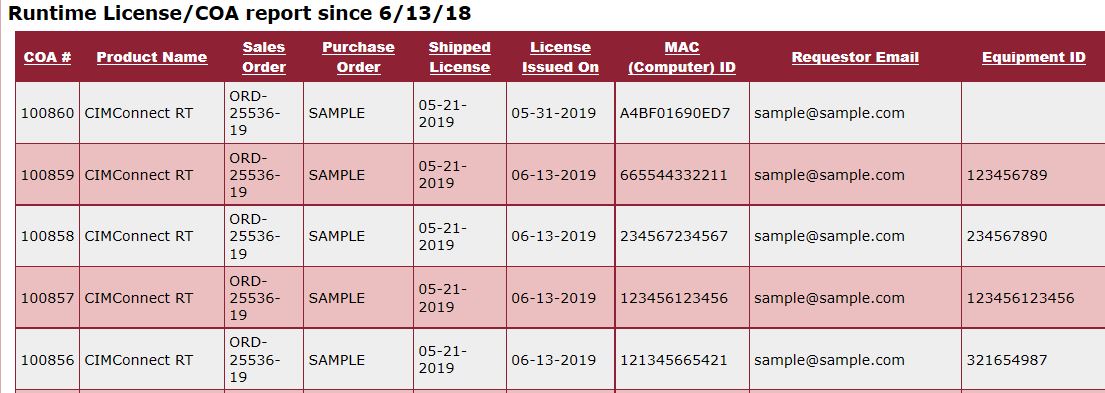
The report will only show 25 rows per page. If the report contains more than 25 licenses in total, the additional pages can be viewed by selecting the desired page number from the bottom of the grid. The currently selected page number will be highlighted in black font.

You can download the entire License Report by using the Download CSV link available at the bottom of the Report Grid. Simply click the link and save the file to a location on your hard drive. You can open the file in either Excel, or another spreadsheet application, or in a text editor.

The Runtime License Report can be accessed by selecting the Manage SDKs tab.
The SDK Report is available to allow customers a simple way to check and verify the status of their most recent Cimetrix SDK product license purchases and requests. The report gives details regarding the customer's purchased licenses and whether they are available for request. Licenses that have not yet been requested will have the text AVAILABLE appear in the License Issued On date column. If a license has already been requested and installed, the date the license was issued will be recorded and in most cases the MAC ID of the computer the license is assigned to will also be listed.
The SDK Report is also very helpful when transferring a license to a new computer or MAC ID. If the license needs to be assigned to a new MAC ID you can transfer the license using the Transfer License page and the MAC ID listed in the report.
For users with active support contracts the report also shows a summary of an SDK's Named User status. From the Named User column it is possible to view whether a Named User has been designated. The Named User Licenses Available column shows how many named user licenses can still be issued for that COA. Clicking on the links in Named User Licenses Available or the COA # columns will navigate the user to the Manage Named User Licenses page. For more information on managing named user licenses see the Manage Named User Licenses section.
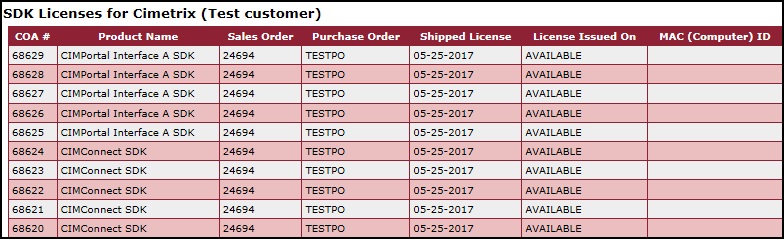
You can download the entire SDK Report by using the Download CSV link available at the bottom of the Report Grid. Simply click the link and save the file to a location on your hard drive. You can open the file in either Excel, or another spreadsheet application, or in a text editor.

If you do not have access to Named User Licenses, you can issue SDK licenses directly from the Manage SDKs page. By default the Action dropdown has Issue New License selected. Using the information from the SDK data grid enter a valid Certificate of Authenticity (COA) number that has status as AVAILABLE. Then enter your computer’s MAC ID and a valid e-mail address(es). If any one of these fields is left empty, the license generation will fail.
After you have provided a valid COA, MACID and email address(es), click the Issue License button and a confirmation message will be displayed to let you know that the license was successfully generated and the email was successfully sent.
Return To TopFrom the Action dropdown select Transfer License. Using the information from the SDK data grid enter a valid Certificate of Authenticity (COA) number that has already been issued. Then enter the computer’s MAC ID to which the product will be installed. Enter a valid e-mail address(es).
After you have provided a valid COA, MACID and email address(es), click the Transfer License button and a confirmation message will be displayed to let you know that the license was successfully generated and the email was successfully sent.
Customers with active support contracts have availble to them access to additional SDK licensing via Named User Licenses under the Cimetrix License Agreement. Named User licensing allows a single SDK user/developer to issue to themselves up to 5 licenses for testing and development purposes. To be able to issue additional named user licenses first go to the Manage SDKs page. If a your company has an active support contract the Named User and Named User Licenses Available columns will be shown. From the links provided in the SDK report table, one can access the named user licensing for a specific COA. Named Users are designated by the users email address. A valid email address is required. Named User licenses can only be issued to the email address of the designated named user.
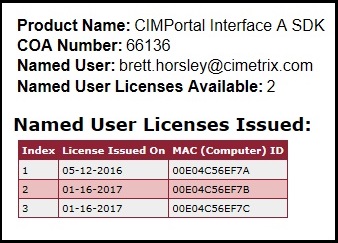
To issue a new named user license, from the Manage Named User License page ensure that 'Issue New Named User License' is selected in the Action dropdown. If required enter a valid email address. Named User licenses can only be issued to the email address entered for the specified named user. Enter a valid MAC ID for the computer on which the license will be installed. Click the 'Issue New License' button. The license will be sent to the email address for the named user and the Named User License table will update with the license info just issued.

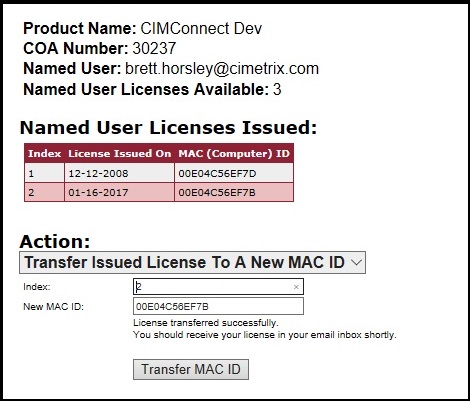
If a named user license installed on a computer needs to be moved to a new computer, then the license can be tranferred to the new computer. First uninstall the Cimetrix software from the original computer Then delete the original license file issued for that computer. From the Manage Named User License page for the assigned COA, select 'Transfer issued license to a new MAC ID' in the Action dropdown. If required enter a valid email address. Named User licenses can only be issued to the email address entered for the specified named user. Enter the Index value of the Named User license you wish to transfer as indicated by the table of issued licenses. Enter a valid MAC ID for the computer to which the license will be transferred. Click the 'Transfer MAC ID' button. The license will be sent to the email address for the named user and the Named User License table will update the indexed license with the new MAC ID.
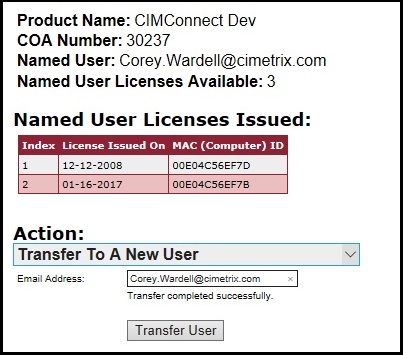
If a named user assignment needs to be changed to a different named user, this can be done by transferring the named user assignment. From the Manage Named User License page for the assigned COA, select 'Transfer To A New User' in the Action dropdown. Enter a new valid email address for the named user. Click the 'Transfer User' button. The Named User License details will update with the new Named User.
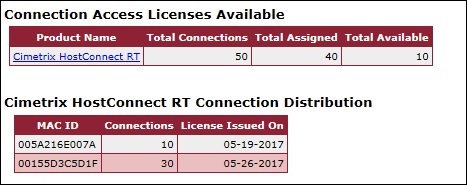
The Connection Access License page has two grids for assisting in issuing Connection Action Licenses. The product grid displays the number of connections for a particular product. Total that have been issued and assigned to specific computers and the total remaining available to be issued.
The Distribution grid shows all the computers that have connections assigned to them for a particular product. From the Connection Access Licenses page, additiona connections can be assigned or reassigned depending on the customers network and factory configuration.
By default the Action dropdown has Issue New License selected. To assign connections and issue a license simply enter your computer’s MAC ID, the number of connections to be assigned and valid e-mail address(es). If any one of these fields is left empty, the license generation will fail.
After you have provided a valid COA, MACID and email address(es), click the Issue License button and a confirmation message will be displayed to let you know that the license was successfully generated and the email was successfully sent.
Return To TopIf for some reason an issued license needs to be transferred to a new MAC ID, this can be accomplished by first selecting the Transfer Existing License item from the Action dropdown. Using the Distribution grid enter the MAC ID to which the license is currently assigned into the Old MAC ID: field. Then enter the MAC ID of the computer to which the license is going to be assigned in the New MAC ID: field. Finally enter valid e-mail address(es) to the Email Address(es) field.
After you have provided a valid Old MAC ID, New MAC ID and email address(es), click the Transfer License button and a confirmation message will be displayed to let you know that the license was successfully generated and the email was successfully sent.
When transferring a license, in order to maintain compliance with Cimetrix's Customer License Agreement, any copies of the original license should be deleted and the product must be uninstalled. from the computer to which it was originallay installed. The new license then can be used to install the product to the new computer. If the transfer is taking place on the original installation computer that has had a hardware change causing the network MAC ID to change, then the license can be updated simply by using Update licenses... feature of the License Control Panel.
Return To TopIf the desired number of connections for a given product installation needs to be changed, this can be accomplished by selecting the Transfer Existing License item from the Action dropdown. Using the Distribution grid enter the MAC ID to which the license is currently assigned into the MAC ID: field. Then enter the new value for the Total # Of Conenctions. Finally enter valid e-mail address(es) to the Email Address(es) field.
After you have provided a valid MAC ID, number of connections and email address(es), click the Resize License button and a confirmation message will be displayed to let you know that the license was successfully generated and the email was successfully sent.
When resizing a license, in order to maintain compliance with Cimetrix's Customer License Agreement, any copies of the original license should be deleted. The new license should be applied to the current product installation using Update licenses... feature of the License Control Panel.
Return To TopIf a product installation on a computer is no longer needed then the license assigned to that computer can be removed by using the Remove Existing License item from the Action dropdown. Using the Distribution grid enter the MAC ID to which the license is currently assigned into the MAC ID: field.
After you have provided a valid MAC ID for an existing product distribution, click the Remove License button and a confirmation message will be displayed to let you know that the license was successfully generated and the email was successfully sent.
When removing a license, in order to maintain compliance with Cimetrix's Customer License Agreement, any copies of the original license should be deleted and the product must be uninstalled.
Return To TopCOA stands for Certificate Of Authenticity. A Certificate Of Authenticity is a physical document shipped to the customer with the purchase of any Cimetrix Incroporated licensed product. The COA guarantees the customers right to the license for their product. On the certificate is printed a unique ID number called the COA number, which the customer can reference when requesting or tracking their cimetrix product licenses.
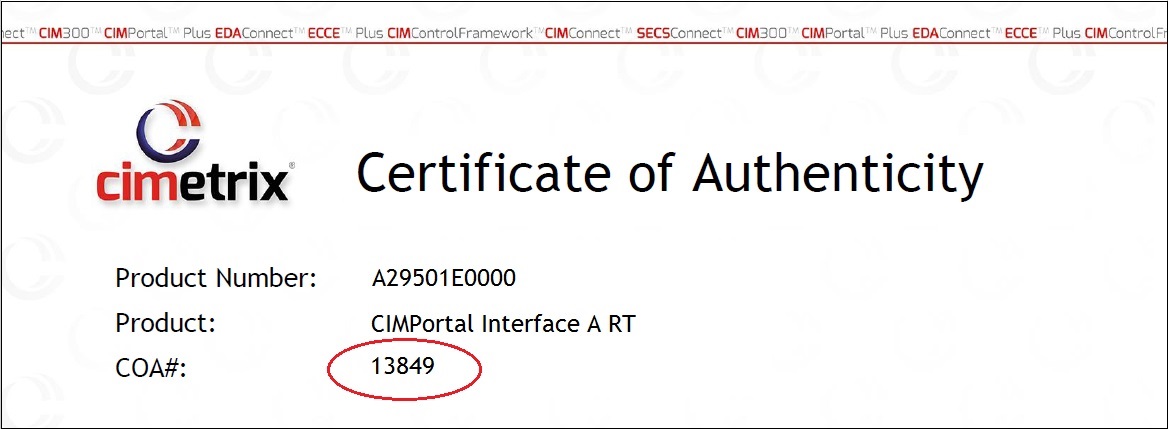
If you have not received your COA, or for whatever reason can not locate it, please contact the Orders department at orders@cimetrix.com.
Return To TopThe computer MAC ID can be obtained by running "ipconfig /all" in a Windows Command Prompt window on the target computer where the product will be installed. The MAC ID is listed as the Physical Address of a computers network adapter. It is a 12 digit alpha-numeric string similar to "00-AA-11-BB-22-CC" that can uniquely identify that physical or virtual computer. If your system has multiple network cards, any MAC ID on the target computer can be used.
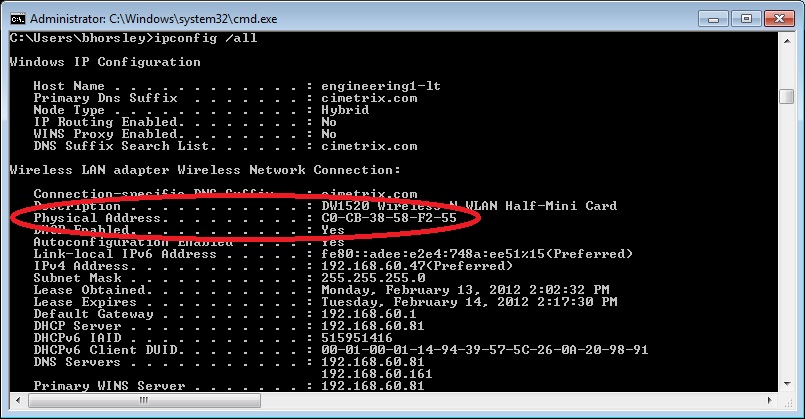
Cimetrix uses this value as a Security ID that will tie your license to that specific computer. If your license needs to be moved to a new computer or the network hardware on your Equipment needs to be replaced you will need to request, from Cimetrix, that the license be transferred to the new hardware. We appreciate your understanding and assistance in maintaining accurate licensing procedures of Cimetrix products.
Return To TopThe Equipment ID field is an optional 32 character field that provides the customer a method to identify the physical piece of equipment to which the license is assigned.
This field is a reference field only that appears on the License Reporting Grid. It is strictly for customer reference and benefit and is not used for any other purpose. This field can only be input during the initial license request process.
Return To TopThe requested license(s) will be sent to the email address provided, as an attachment in a ZIP file. At least one email address must be entered. Multiple email addresses can be carbon-copied(CCed) by separating each address by a semicolon (;) and with no whitespace between the addresses. For example:
firstAddress@company.com;secondAddress@company.com;thirdAddress@company.com
Your license request may be rejected for several reasons. This section describes in greater detail the meaning of some of the Web License Generator's error messages and steps you can take to remedy the problem.
The system has detected that the COA field was left empty. The license for this COA could not be processed.
Return To TopThe COA number must contain only numeric characters. For example: 22%22F; is invalid.
Return To TopThe MAC ID is a 12 digit Hexadecimal value like 00-AA-11-BB-22-CC. If the value is found to contain any invalid characters, does not contain the correct number of characters or uses a delimiting character other than '-' you will receive this error message For example: 22:ZZ:FF:11:22; is invalid.
Return To TopThe system has detected that the MAC ID field was left empty. The license for this line could not be processed.
Return To TopThere are a couple of things to watch out for when entering a valid email address in the Web License Generator.
The COA number entered could not be found in our database. Verify that you entered the COA number correctly and contains only numeric characters.
Return To TopOur records show that the COA and license requested does not belong to the company you have logged in as.
Return To TopA license for the COA entered has already been issued. You either need to select a different available COA, or you may be able to transfer the license to a new computer.
Return To TopEvery COA has to be shipped by our Orders department before it can be issued. Our records show that your COA has not yet shipped. If you receive this error message, please contact both orders@cimetrix.com and licenses@cimetrix.com to get the shipping status of your COA.
Return To TopCOAs that were ordered before 2009 cannot be issued by customers using the Web License Generator. Please send your request to licenses@cimetrix.com and our license team will assist you.
Return To TopThe Web License Generator identifies your license via the currently assigned MAC ID in our records. If you receive this error message the WLG system was not able to find the Old MAC ID entered, assigned to any of your current licenses. Please verify that your licenses are properly installed on a computer with the correct MAC ID.
Return To TopWhen no COA number is provided the license transfer process will fail if the system finds more than one record who's current MAC ID matches the Old MAC ID entered. Please verify that your licenses are properly installed on a computer with the correct MAC ID. If you are able to locate the correct COA number, you can enter it and the Web License Generator will be able process your transfer request.
Return To TopIn order to transfer a license, the Old MAC ID provided by the user must match the MAC ID we currently have assigend in our records. Please verify that your licenses are properly installed on a computer with the correct MAC ID.
Return To TopAn uknown error occured attempting to transfer the license. The license was not transferred successfully. If the problem persists please contact our Licenses Department at licenses@cimetrix.com
Return To TopAn uknown error occured during the license generation process. If the problem persists please contact our Licenses Department at licenses@cimetrix.com
Return To TopThe license generation process succeeded but an error occured updating our records. If the problem persists please contact our Licenses Department at licenses@cimetrix.com
Return To TopAn IO Error occurred reading the input data from the row indicated. The license for this row was not processed. Please check the input data and try your request again. If the problem persists contact our Licenses Department at licenses@cimetrix.com.
Return To TopThe licenses were generated, but an error occurred sending the license email. The license information has been updated in our records. You will need to contact our Licenses Department at licenses@cimetrix.com to receive your licenses. We apoligize for the inconvenience.
Return To TopThe licenses were generated, but an error occurred sending the license email. The license information has been updated in our records. You will need to contact our Licenses Department at licenses@cimetrix.com to receive your licenses. We apoligize for the inconvenience.
Return To TopNo runtime licenses have been purchased in the last year so no current license data is available. If you need information regarding licenses purchased previous to this past year or if you believe you have reached this error message incorrectly, please contact licenses@cimetrix.com
Return To TopNo record of an SDK purchase by your company could be found in our database. If you believe these records are inaccurate, please contact licenses@cimetrix.com
Return To TopThis means you have reached your limit of available named user licenses. Only 5 named user licenses can be issued for a single COA. You may need to either purchase another SDK license, or transfer a previously issued named user license.
Return To TopAn unknown error occurred transferring the named user. Please contact our Licenses Department at licenses@cimetrix.com for assistance.
Return To TopNamed user licenses are uniquely identified by their index value within their COA group. To transfer a named user license please indicate its index value. All available index values should be visible from the 'Named User Licenses Issued' table.
Return To TopConnection Access Licenses for a given product can be distributed among multiple servers. However if no distributions have been made to date, this message will be displayed in place of the license distribution grid for this product. Once a license is issued a for the product and the distribution will appear in the distribution grid.
Return To TopIt is not possible to have more than one distribution to a single computer for a given Connection Access License product. If our system detects that a distribution has already been issued to a specific MAC ID, then the license request will be rejected. To reissue a license with a different number of connections select the Resize Existing License item from the Action dropdown to modify the total number of connections for a specific distribution.
Return To TopThe system could not find a license for the MAC ID entered. Please refer to the Connection Action License distribution grid for currently existing license distributions. Use the MAC IDs listed to perform the desired operation.
Return To TopAn unknown error occurred trying to remove the Connection Access License. If the problem persists please contact our Licenses Department at licenses@cimetrix.com
Return To TopThe given product does not have enough available connections to adequately fulfill the request. Either reduce the number connections requested, purchase additional connections, or reconfigure your distributions to accomodate for the limited available connections.
Return To Top